
How do I upload a PDF?
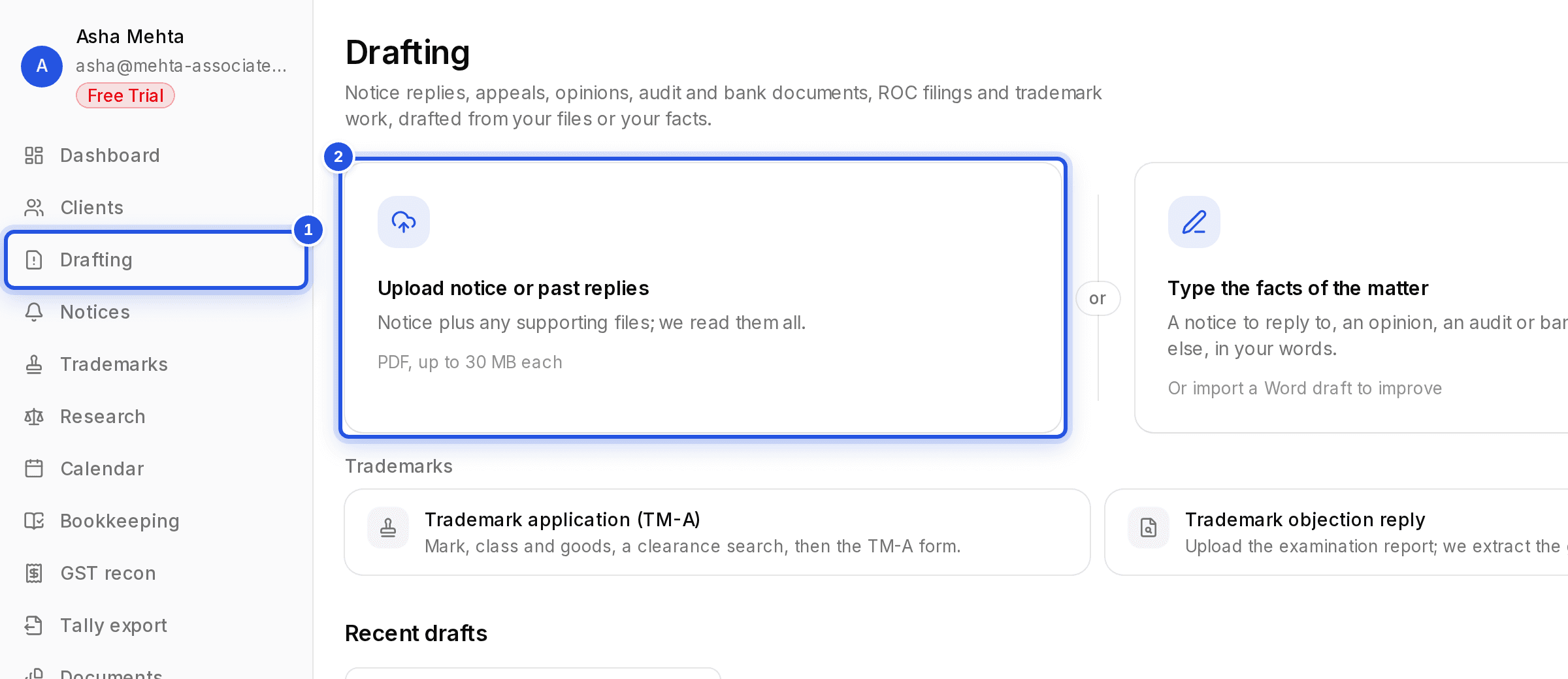
In Drafting, choose Upload notice or past replies, then drop your PDFs in or browse for them. Each PDF can be up to 30 MB.
Updated 29 Sept 2026
Steps
- Step 1: Open Drafting from the sidebar.
- Step 2: Choose Upload notice or past replies. The Start drafting by window opens on the Upload step.
- Step 3: Drop the notice into the box, or click browse and pick it. Add any supporting files too: annexures, reconciliations, invoices, bank statements.
- Step 4: Wait for each file to finish uploading, then choose Next.
- Step 5: On the Details step, add anything we should know and choose Submit.
Good to know
- Scanned PDFs are fine. We read every file you add.
- Already uploaded the notice somewhere else in Charter AI? Choose Choose from Documents instead, so nothing is uploaded or read again.
- Every file you upload also lands in Documents.
Was this helpful?
Still stuck? Write to support and we will get back to you. Contact support