
How do I reply to a GST notice?
Upload the notice in Drafting, add any supporting files and details, and choose Submit. The reply opens in the editor with every fact and legal point linked to its source.
Updated 29 Sept 2026
Steps
- Step 1: Open Drafting and choose Upload notice or past replies.
- Step 2: Upload the notice and any supporting files, then choose Next.
- Step 3: In Additional details, add your position and anything the notice does not say.
- Step 4: Leave Include case research on to search cited precedent for the reply.
- Step 5: Choose Submit. The reply is written in a minute or two and opens in the editor.
- Step 6: Check the facts and citations, then export.
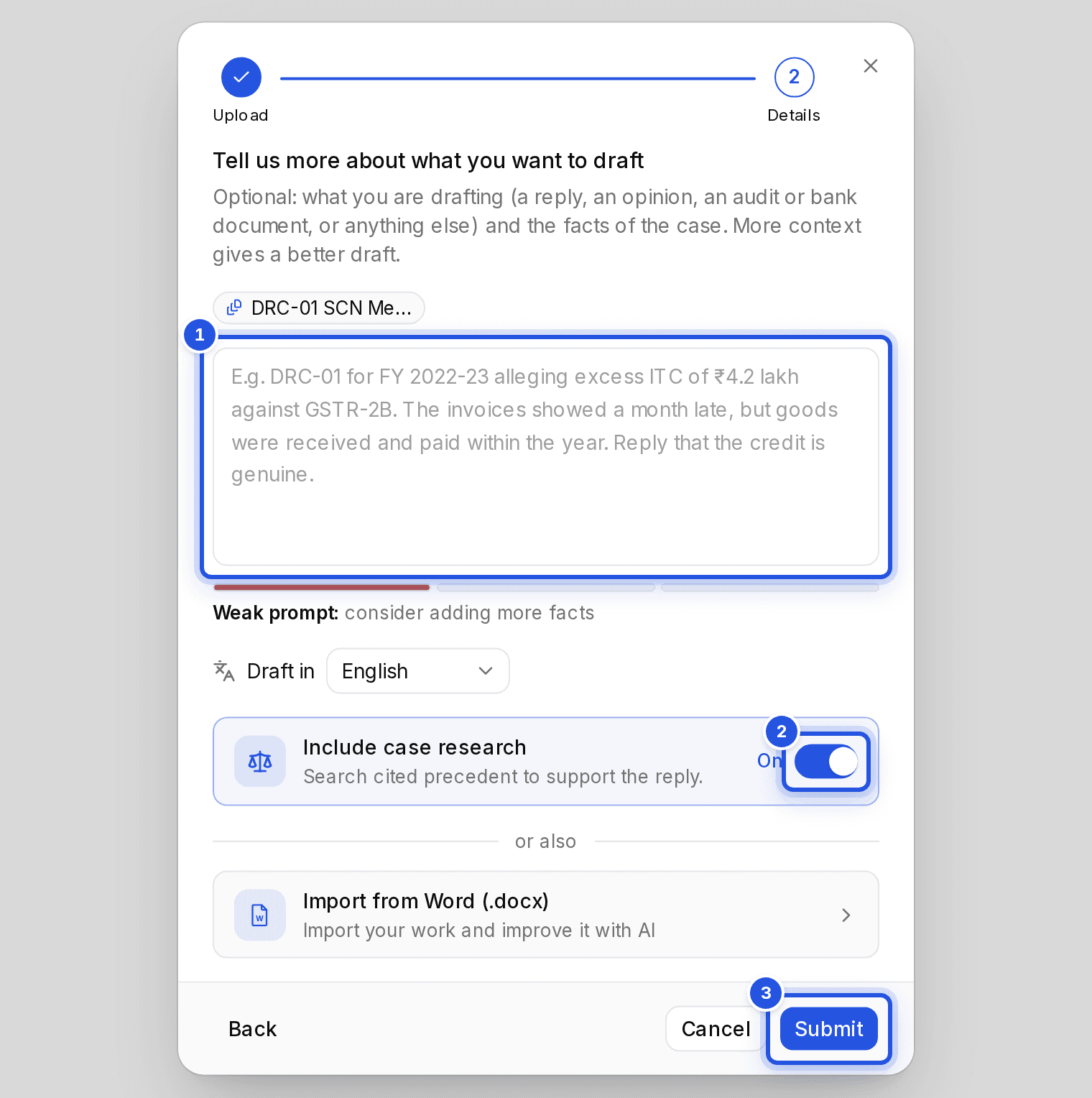
Options on the Details step
- Draft in: English or Hindi.
- Include case research: on by default.
- Use your trained drafting style: shown once you have set up Train your Charter AI. On by default; switch it off to draft without your style guide.
Was this helpful?
Still stuck? Write to support and we will get back to you. Contact support