
How do I import the file into TallyPrime?
Open the client's company in TallyPrime, go to Import Data from Gateway of Tally (Alt+O), choose the downloaded XML and check what Tally reports.
Updated 29 Sept 2026
Steps in TallyPrime
- Step 1: Open the company these books belong to.
- Step 2: From Gateway of Tally, choose Import Data (Alt+O).
- Step 3: Point Tally at the XML file you downloaded and confirm the import.
- Step 4: Tally shows how many ledgers and vouchers it created, and anything it skipped.
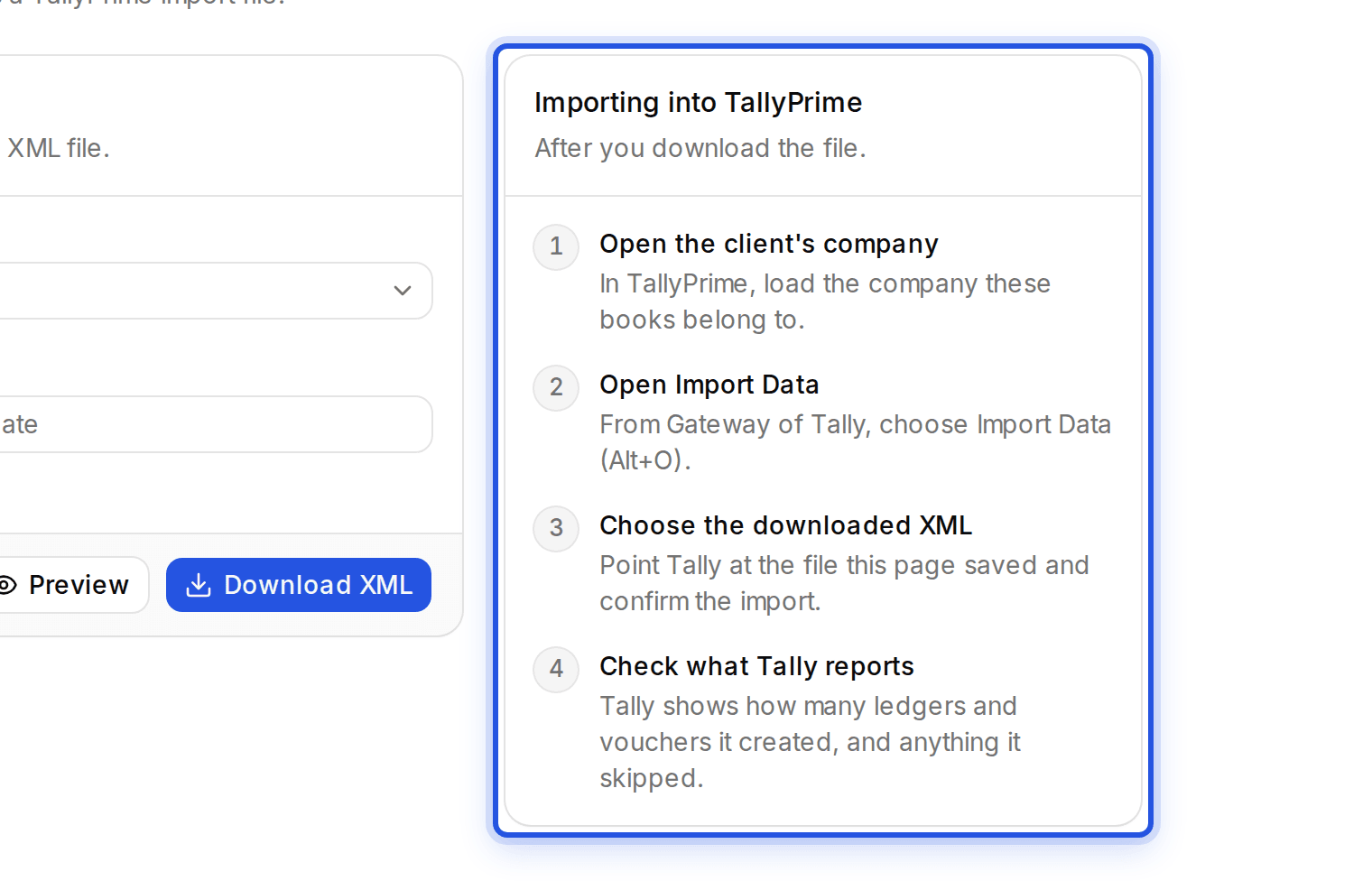
The same steps are shown under Importing into TallyPrime on the Tally export page after you download.
Was this helpful?
Still stuck? Write to support and we will get back to you. Contact support